> ## Documentation Index
> Fetch the complete documentation index at: https://docs.codecrafters.io/llms.txt
> Use this file to discover all available pages before exploring further.
# Large files found
> Instructions on resolving error related to large files
When pushing your changes, you might see a message indicating that some files exceed the 1MB size limit:
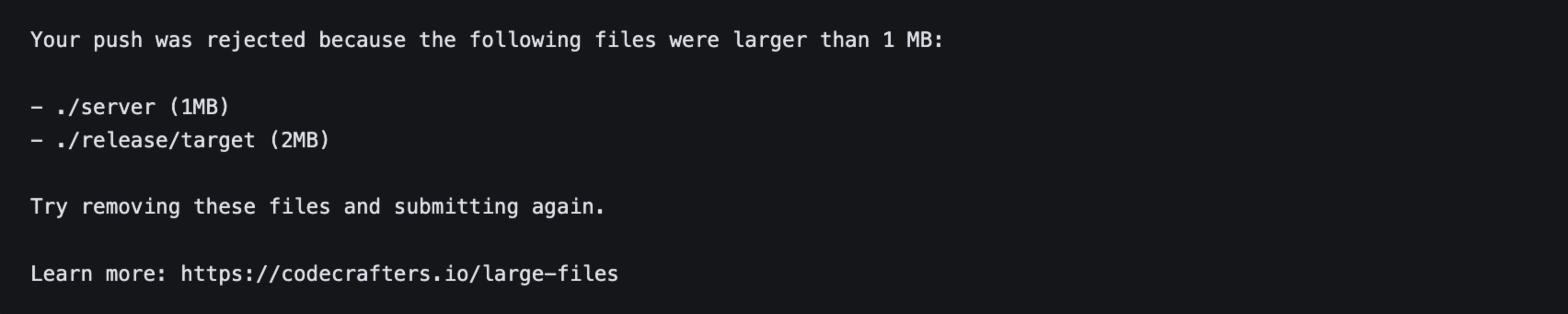 If you encounter an error like this, it's likely due to inadvertently committing files that are too large or not meant to be tracked (e.g., binaries or `node_modules/`).
Depending on when these large files entered your Git history, there are two ways to resolve this.
## Solution 1: Amend last commit (Try this first)
Run the following command:
```bash theme={null}
git rm LARGE_FILE
```
This command removes the large files from your Git repository and locally.
For example to delete the `./server` and `./release/target` binaries shown in the screenshot above, run the following command:
```bash theme={null}
git rm server release/target
```
```bash theme={null}
git commit --amend --no-edit --allow-empty
```
This will amend the previous commit with the changes.
Finally, push your code:
```bash theme={null}
git push origin master
```
If Solution 1 doesn't work, it means the large files are present in an older commit and will require some extra work. Follow the instructions in Solution 2 below.
## Solution 2: Amend historical commits
You can install [git-filter-repo](https://github.com/newren/git-filter-repo) manually or by using a package manager. For example, to install the tool with Homebrew, run the following command:
```bash theme={null}
brew install git-filter-repo
```
For more information, see [INSTALL.md](https://github.com/newren/git-filter-repo/blob/main/INSTALL.md)
Delete each of the large files using the following command:
```bash theme={null}
git filter-repo --invert-paths --path PATH-TO-LARGE-FILE
```
This will remove the file from your Git history and local filesystem.
Add the *path* to the files you want to remove, not just their filename.
The `git filter-repo` tool will automatically remove your configured remote CodeCrafters Git repository. Restore it using the following steps:
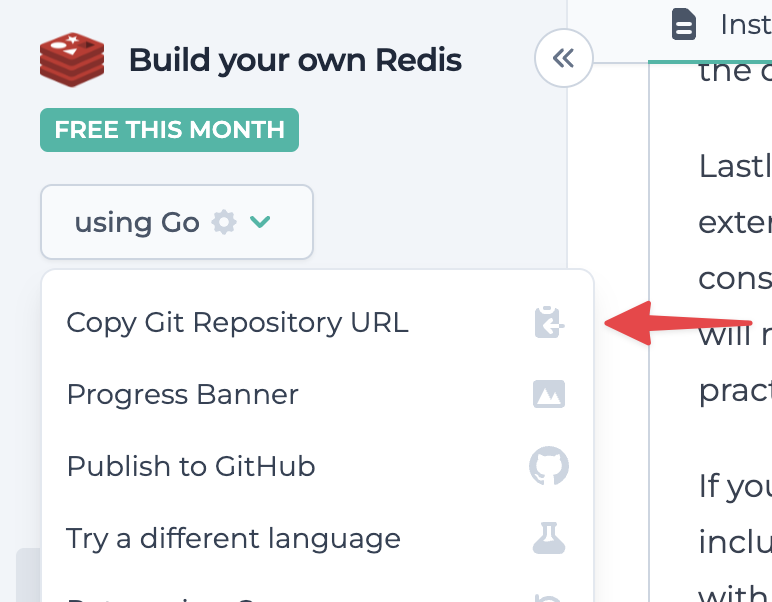
Copy the CodeCrafters Git repository URL from the dropdown menu:
If you encounter an error like this, it's likely due to inadvertently committing files that are too large or not meant to be tracked (e.g., binaries or `node_modules/`).
Depending on when these large files entered your Git history, there are two ways to resolve this.
## Solution 1: Amend last commit (Try this first)
Run the following command:
```bash theme={null}
git rm LARGE_FILE
```
This command removes the large files from your Git repository and locally.
For example to delete the `./server` and `./release/target` binaries shown in the screenshot above, run the following command:
```bash theme={null}
git rm server release/target
```
```bash theme={null}
git commit --amend --no-edit --allow-empty
```
This will amend the previous commit with the changes.
Finally, push your code:
```bash theme={null}
git push origin master
```
If Solution 1 doesn't work, it means the large files are present in an older commit and will require some extra work. Follow the instructions in Solution 2 below.
## Solution 2: Amend historical commits
You can install [git-filter-repo](https://github.com/newren/git-filter-repo) manually or by using a package manager. For example, to install the tool with Homebrew, run the following command:
```bash theme={null}
brew install git-filter-repo
```
For more information, see [INSTALL.md](https://github.com/newren/git-filter-repo/blob/main/INSTALL.md)
Delete each of the large files using the following command:
```bash theme={null}
git filter-repo --invert-paths --path PATH-TO-LARGE-FILE
```
This will remove the file from your Git history and local filesystem.
Add the *path* to the files you want to remove, not just their filename.
The `git filter-repo` tool will automatically remove your configured remote CodeCrafters Git repository. Restore it using the following steps:
Copy the CodeCrafters Git repository URL from the dropdown menu:
 Run the following command in your local project folder:
```bash theme={null}
git remote add origin CODECRAFTERS-GIT-URL
```
Finally, force-push your code:
```bash theme={null}
git push origin --force --all
```
If you're still running into issues after trying the the two steps above,
please reach out to us at
[hello@codecrafters.io](mailto:hello@codecrafters.io) and we'll help out!{" "}
Run the following command in your local project folder:
```bash theme={null}
git remote add origin CODECRAFTERS-GIT-URL
```
Finally, force-push your code:
```bash theme={null}
git push origin --force --all
```
If you're still running into issues after trying the the two steps above,
please reach out to us at
[hello@codecrafters.io](mailto:hello@codecrafters.io) and we'll help out!{" "}